
Please Note: This article is written for users of the following Microsoft Excel versions: 2007, 2010, 2013, 2016, 2019, 2021, and Excel in Microsoft 365. If you are using an earlier version (Excel 2003 or earlier), this tip may not work for you. For a version of this tip written specifically for earlier versions of Excel, click here: Adjusting Cell Margins for More White Space.

Written by Allen Wyatt (last updated August 10, 2024)
This tip applies to Excel 2007, 2010, 2013, 2016, 2019, 2021, and Excel in Microsoft 365
Serena asked if there is a way to adjust the text margins with a cell so that there is more white space within a cell. The answer is that there is no intrinsic Excel command to add more space, as you can do in Word tables or with the CELLPADDING attribute in an HTML table. However, there are a couple of ways you can accomplish the desired goal, although it is somewhat more manual in nature. The first possible approach is to follow these general steps:
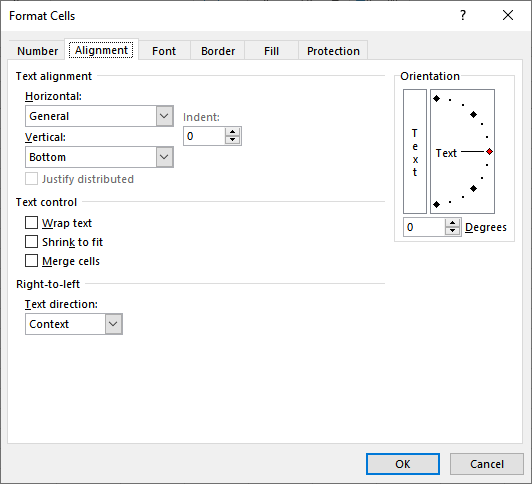
Figure 1. The Alignment tab of the Format Cells dialog box.
You'll want to experiment with the settings you use to get the exact look you want.
ExcelTips is your source for cost-effective Microsoft Excel training. This tip (11498) applies to Microsoft Excel 2007, 2010, 2013, 2016, 2019, 2021, and Excel in Microsoft 365. You can find a version of this tip for the older menu interface of Excel here: Adjusting Cell Margins for More White Space.

Program Successfully in Excel! This guide will provide you with all the information you need to automate any task in Excel and save time and effort. Learn how to extend Excel's functionality with VBA to create solutions not possible with the standard features. Includes latest information for Excel 2024 and Microsoft 365. Check out Mastering Excel VBA Programming today!
If you want to format currency values so that Excel uses periods between groups of thousands and commas as a decimal ...
Discover MoreIf you have a range of numeric values in your worksheet, you may want to change them from numbers to text values. Here's ...
Discover MoreYou can spend a lot of time getting the formatting in your worksheets just right. If you want to protect an element of ...
Discover MoreFREE SERVICE: Get tips like this every week in ExcelTips, a free productivity newsletter. Enter your address and click "Subscribe."
There are currently no comments for this tip. (Be the first to leave your comment—just use the simple form above!)
Got a version of Excel that uses the ribbon interface (Excel 2007 or later)? This site is for you! If you use an earlier version of Excel, visit our ExcelTips site focusing on the menu interface.
FREE SERVICE: Get tips like this every week in ExcelTips, a free productivity newsletter. Enter your address and click "Subscribe."
Copyright © 2026 Sharon Parq Associates, Inc.
 Please Note:
This article is written for users of the following Microsoft Excel versions: 2007, 2010, 2013, 2016, 2019, 2021, and Excel in Microsoft 365. If you are using an earlier version (Excel 2003 or earlier), this tip may not work for you. For a version of this tip written specifically for earlier versions of Excel, click here:
Please Note:
This article is written for users of the following Microsoft Excel versions: 2007, 2010, 2013, 2016, 2019, 2021, and Excel in Microsoft 365. If you are using an earlier version (Excel 2003 or earlier), this tip may not work for you. For a version of this tip written specifically for earlier versions of Excel, click here:
Comments