
Please Note: This article is written for users of the following Microsoft Excel versions: 2007, 2010, 2013, 2016, 2019, 2021, and Excel in Microsoft 365. If you are using an earlier version (Excel 2003 or earlier), this tip may not work for you. For a version of this tip written specifically for earlier versions of Excel, click here: Tab Key Jumps a Screen at a Time.
In Excel, different keys have different purposes when it comes to navigating around your worksheet. Normally, when you press the Tab key you will notice that Excel moves the cell cursor one column to the right. Not all spreadsheet programs behave this way, however. For instance, when you press the Tab key in Lotus 1-2-3, the cell cursor jumps a full screen to the right, instead of a single column.
Excel, in its efforts to make life easier on people who are just changing to the program, will emulate the navigation keys used by Lotus 1-2-3. If you press the Tab key in Excel, and the cell cursor jumps one screen to the right, then your system is using the navigation emulator instead of the native Excel navigation keys. To change back to the Excel defaults, follow these steps:
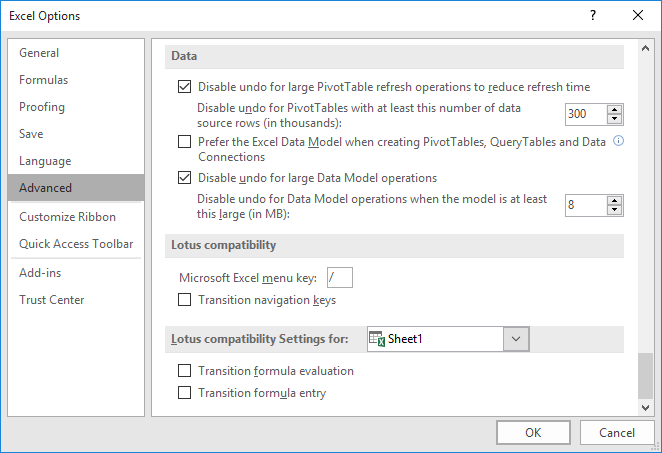
Figure 1. The Advanced options in the Excel Options dialog box.
That's it. Your Tab key should now work as expected, moving one column to the right each time you press it.
ExcelTips is your source for cost-effective Microsoft Excel training. This tip (6710) applies to Microsoft Excel 2007, 2010, 2013, 2016, 2019, 2021, and Excel in Microsoft 365. You can find a version of this tip for the older menu interface of Excel here: Tab Key Jumps a Screen at a Time.

Professional Development Guidance! Four world-class developers offer start-to-finish guidance for building powerful, robust, and secure applications with Excel. The authors show how to consistently make the right design decisions and make the most of Excel's powerful features. Check out Professional Excel Development today!
Enter a value into a cell and "poof!" it is automatically divided by 100. What's going on, and how can you fix it so that ...
Discover MorePress the slash key and Excel may display a series of keyboard commands near the ribbon. If this behavior drives you ...
Discover MoreExcel normally refers to columns as A, B, C, etc. It also has a referencing format that allows columns to be referred to ...
Discover MoreFREE SERVICE: Get tips like this every week in ExcelTips, a free productivity newsletter. Enter your address and click "Subscribe."
2025-01-25 10:04:58
Vijay
THANKYOU...ITS WORKING SUPER
2023-12-12 21:33:33
Hassan Baghian
Thanks for you detailed and verry helpful tips
Got a version of Excel that uses the ribbon interface (Excel 2007 or later)? This site is for you! If you use an earlier version of Excel, visit our ExcelTips site focusing on the menu interface.
FREE SERVICE: Get tips like this every week in ExcelTips, a free productivity newsletter. Enter your address and click "Subscribe."
Copyright © 2026 Sharon Parq Associates, Inc.
 Please Note:
This article is written for users of the following Microsoft Excel versions: 2007, 2010, 2013, 2016, 2019, 2021, and Excel in Microsoft 365. If you are using an earlier version (Excel 2003 or earlier), this tip may not work for you. For a version of this tip written specifically for earlier versions of Excel, click here:
Please Note:
This article is written for users of the following Microsoft Excel versions: 2007, 2010, 2013, 2016, 2019, 2021, and Excel in Microsoft 365. If you are using an earlier version (Excel 2003 or earlier), this tip may not work for you. For a version of this tip written specifically for earlier versions of Excel, click here: 
Comments